This error occurs because Gradle cannot find the specified plugin with the given version. This typically happens due to a misconfiguration in the settings.gradle or build.gradle files, especially when the version is not correctly specified or when there’s a typo in the plugin ID.
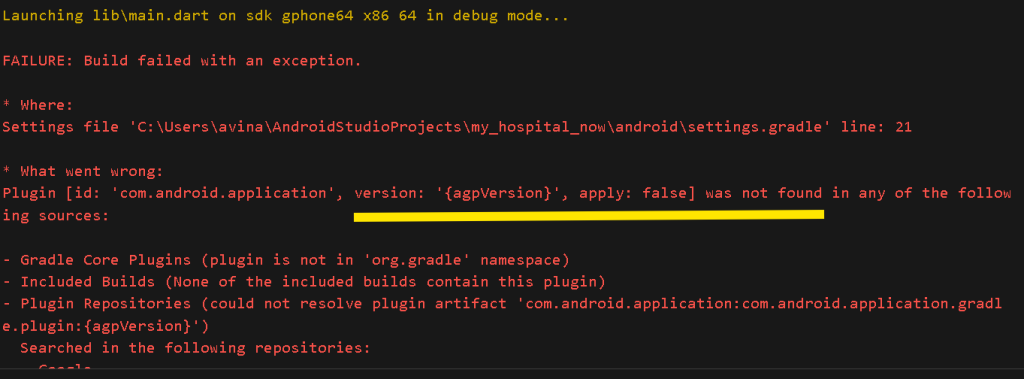
When building an Android application, encountering plugin-related errors can be frustrating. One common error that developers face is:
Before
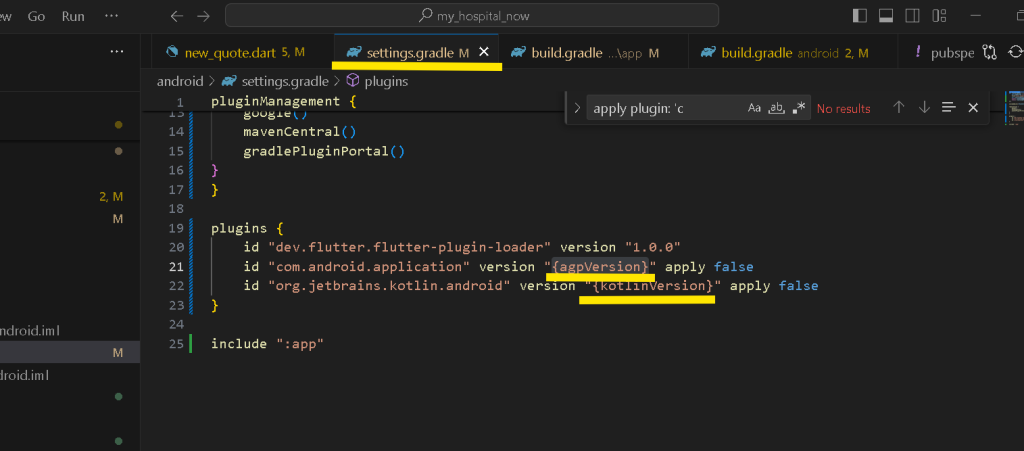
The error arises because placeholders ({agpversion} and {kotlineversion}) are used instead of actual version numbers.
Specify Correct Versions
Replace the placeholders with the actual versions you intend to use. For instance, if you want to use version 7.3.0 of the Android Gradle Plugin (AGP) and version 1.9.10 of the Kotlin plugin, your settings.gradle file should be updated as follows:
After
plugins {
    id "dev.flutter.flutter-plugin-loader" version "1.0.0"
    id "com.android.application" version "7.3.0" apply false
    id "org.jetbrains.kotlin.android" version "1.9.10" apply false
}
Synchronize Gradle
After making these changes, synchronize your Gradle files with your project. In Android Studio, you can do this by clicking on the “Sync Now” link that appears at the top of the editor, or by selecting “File” > “Sync Project with Gradle Files”.