In today’s fast digital world, speed is essence. Whether you’re navigating a busy workday, gaming, or simply browsing the web, a sluggish system can be a frustrating bottleneck. Fortunately, there are several strategies you can employ to optimize your system’s performance and make it faster than ever before. we’ll explore some effective techniques to turbocharge your computer or device.
Declutter Your System

A cluttered system can significantly slow down performance. Start by cleaning up unnecessary files, applications, and programs that you no longer use. Delete old documents, temporary files, and empty the recycle bin. Consider uninstalling unused applications and disabling unnecessary startup programs that consume valuable resources.
“Decluttering your system” refers to the process of removing unnecessary files, applications, and programs from your computer or device to improve performance and efficiency. Here’s a breakdown of the steps involved:
Clean Up Unnecessary Files: Over time, your system accumulates various files that may no longer be needed, such as old documents, downloads, temporary files, and cached data. These files can take your the valuable storage space & slow-down your system. By identifying and deleting these unnecessary files, you can free up storage space and improve overall performance.
Uninstall Unused Applications: Many users install applications on their systems for specific tasks but then forget about them or no longer use them regularly. These unused applications continue to take up space on your hard drive and may also run background processes that consume system resources. Consider uninstalling any applications that you no longer need or use to declutter your system and improve performance.
Disable Unnecessary Startup Programs: When you start your computer, certain applications and programs may launch automatically and run in the background, even if you don’t actively use them. These startup programs consume system resources and can significantly slow down your system’s boot time. By disabling unnecessary startup programs, you can reduce the amount of time it takes for your system to boot up and free up resources for other tasks.
Empty the Recycle Bin: Deleted files on your system are typically moved to the Recycle Bin (Windows) or Trash (macOS) until they are permanently deleted. Emptying the Recycle Bin or Trash regularly ensures that these deleted files do not continue to occupy storage space on your hard drive.
Upgrade Your Hardware
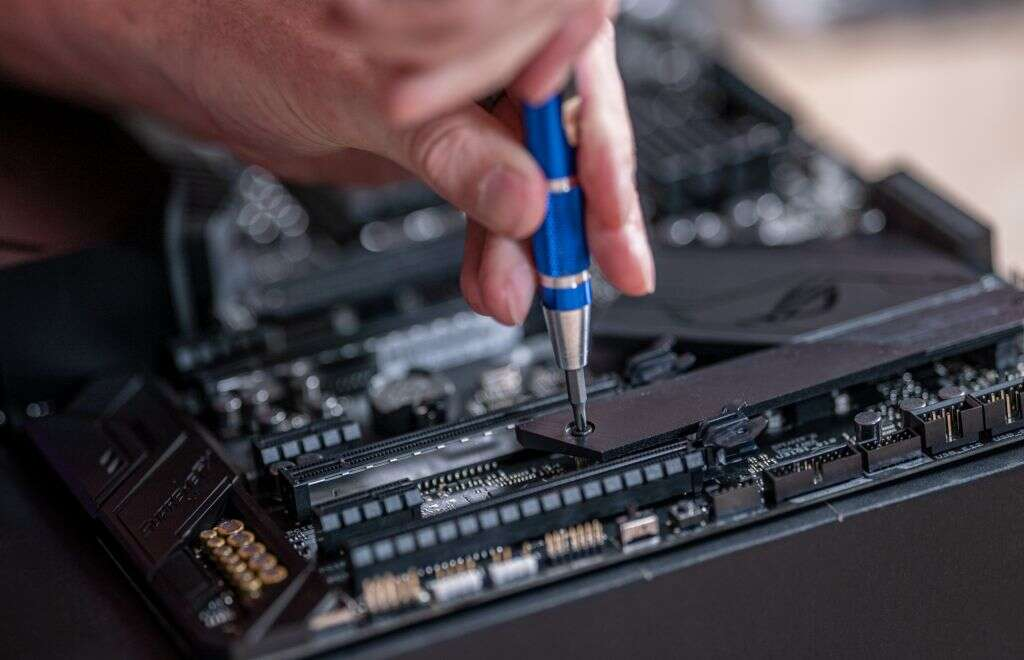
Sometimes, sluggish performance can be attributed to outdated hardware. Consider upgrading critical components such as the CPU, RAM, or storage drive (e.g., upgrading to a solid-state drive). Increasing your system’s RAM can significantly improve multitasking capabilities, while a faster CPU can handle demanding tasks more efficiently.
CPU (Central Processing Unit): The CPU is often referred to as the brain of the computer, responsible for executing instructions and performing calculations. Upgrading to a faster CPU can significantly improve your system’s processing power, allowing it to handle demanding tasks more efficiently. Tasks such as video editing, gaming, and software development can benefit greatly from a faster CPU.
RAM “Random Access Memory”: RAM is type of volatile memory which is temporarily stores the data and instructions that CPU needs to access quickly. Increasing your system’s RAM allows it to store and access more data simultaneously, improving multitasking capabilities and overall responsiveness. With more RAM, your system can run more applications and processes simultaneously without slowing down.
Storage Drive: Upgrading your storage drive, especially to a solid-state drive (SSD), can have a significant impact on your system’s speed and responsiveness. Unlike traditional hard disk drives (HDDs), which rely on spinning disks and mechanical components, SSDs use flash memory technology, resulting in faster read and write speeds. This means faster boot times, quicker application launches, and reduced loading times for files and programs.
Optimize Startup Programs
Many applications automatically launch when you start your system, consuming valuable resources and slowing down the boot process. Take a control of your startup programs through disabling un-necessary program. You can do this through Task Manager “Windows” or System Preferences “macOS”. Only keep essential programs set to launch at startup for a faster boot time.
Automatic Launch: When you start your computer, certain applications and programs may launch automatically in the background. These applications can include system utilities, antivirus software, messaging apps, and others. While some of these programs may be essential for your daily use, others may not be necessary to launch immediately upon startup.
Resource Consumption: Each additional program that launches at startup consumes valuable system resources, including CPU cycles, memory (RAM), and disk input/output (I/O). Having too many startup programs can slow down the boot process and increase the time it takes for your computer to become fully operational. It can also impact the overall performance of your system, especially if you have limited hardware resources.
How to Optimize: You can optimize startup programs by reviewing and managing the list of applications that launch at startup. On Windows, you can use the Task Manager to view and disable startup programs. Simply right-click on the taskbar, select “Task Manager,” go to the “Startup” tab, and disable unnecessary programs. On mac Operating System, you can handle startup item’s in System Preferences. Navigate to “Users & Groups,” choose your user account, and then access the “Login Items” tab to control startup programs.
Essential Programs: Identify essential programs that you use regularly and need to launch automatically at startup. These may include antivirus software, backup utilities, and other tools that you rely on for system maintenance and security. Keep these programs enabled in the startup list to ensure that they are readily available when you need them.
Non-Essential Programs: Review the list of startup programs and identify any non-essential or rarely used applications. Consider disabling these programs from launching at startup to free up system resources and improve boot times. You can always launch these programs manually when you need them, rather than having them run in the background from the moment your computer starts up.
Perform Regular Maintenance
Regular system maintenance can prevent performance degradation over time. Schedule routine disk cleanup, defragmentation (for traditional hard drives), and system updates. Keep your operating system, drivers, and software up to date to ensure compatibility and optimal performance. Additionally, consider running antivirus scans to remove malware and optimize security.
Disk Cleanup: Over time, your computer accumulates temporary files, cache data, and other unnecessary files that take up valuable storage space. Disk cleanup tools help you identify and remove these unnecessary files, freeing up disk space and improving overall system performance. Regularly performing disk cleanup helps prevent storage space from becoming cluttered and ensures that your system runs efficiently.
Defragmentation (for Traditional Hard Drives): Traditional hard disk drives (HDDs) store data on spinning magnetic disks, which can become fragmented over time. Fragmentation transpires when files are divided into smaller segments and dispersed across various locations on the disk, resulting in diminished read and write speeds. Defragmentation tools organize and consolidate fragmented files, improving disk access times and overall system performance. While modern operating systems often perform automatic defragmentation, scheduling regular defragmentation sessions can help maintain optimal disk performance.
System Updates: Operating system updates, driver updates, and software updates often include performance improvements, bug fixes, and security patches. Keeping your operating system, device drivers, and installed software up to date ensures compatibility, stability, and optimal performance. Set up automatic updates where possible or regularly check for updates and install them promptly to benefit from the latest enhancements and security fixes.
Antivirus Scans: Malware, including viruses, spyware, and other malicious software, can compromise system performance and security. Regular antivirus scans help detect and remove malware infections, protecting your system from potential threats and optimizing security. Schedule periodic antivirus scans to proactively identify and eliminate any security risks that may impact system performance.
Utilize Performance Optimization Software
There are several reputable performance optimization tools available that can automate many of the tasks mentioned above. These tools often offer features such as disk cleanup, registry cleaning, and system optimization. However, exercise caution and research thoroughly before installing any third-party software to avoid potential security risks.
Automation of Maintenance Tasks: Performance optimization software typically offers features that automate tasks such as disk cleanup, registry cleaning, system optimization, and more. These tools can help you perform routine maintenance tasks more efficiently by automating the process and reducing the manual effort required.
Features Offered: Performance optimization software often includes a range of features designed to enhance system performance. These may include:
Registry Cleaning: Eliminating outdated or invalid entries from the Windows registry to enhance system stability and performance.
System Fine-Tuning: Adjusting system settings and configurations to enhance performance and responsiveness.
Startup Manager: Managing startup programs to reduce boot times and improve system startup performance.
Uninstaller: Easily uninstalling unused or unwanted applications to free up resources and improve system performance.
Exercise Caution: While performance optimization software can be beneficial, it’s essential to exercise caution and research thoroughly before installing any third-party software on your system. Some optimization tools may promise significant performance improvements but could potentially introduce security risks or cause system instability if not used properly.
Reputation and Trustworthiness: Before installing performance optimization software, research the reputation and trustworthiness of the tool and its developer. Look for reviews, ratings, and user feedback to gauge the reliability and effectiveness of the software. Opt for reputable and well-established tools from trusted sources to minimize the risk of encountering issues.
Compatibility and System Requirements: Ensure that the performance optimization software you choose is compatible with your operating system version and meets the system requirements of your computer or device. Using incompatible or resource-intensive software may lead to compatibility issues or performance degradation.
Adjust Visual Effects
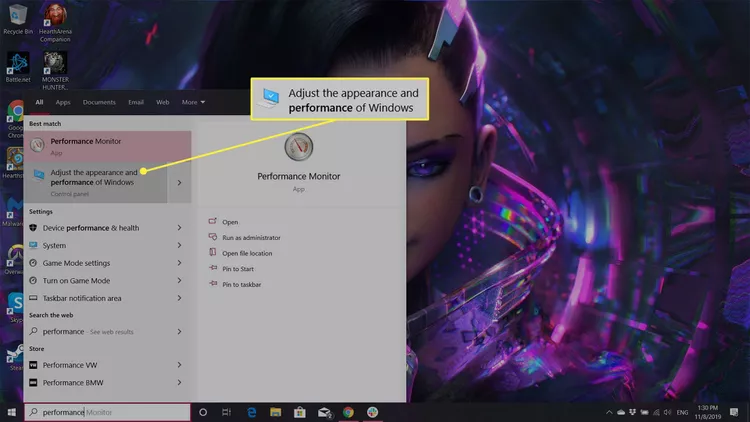
Operating systems often include visual effects and animations that, while aesthetically pleasing, can consume system resources. Adjusting these settings can free up resources and improve overall performance. In Windows, you can access visual effects settings through the Control Panel or Settings app. On macOS, navigate to System Preferences > Accessibility > Display and adjust the Reduce Motion and Reduce Transparency settings.
Visual Effects and Animations: Operating systems like Windows and macOS often include various visual effects and animations to enhance the user experience. These can include window animations, transition effects, transparency effects, and more. While these visual enhancements can make the user interface more aesthetically pleasing, they also consume system resources such as CPU and GPU power.
Conserving System Resources: Adjusting visual effects involves reducing or disabling certain graphical features to free up system resources and improve performance, particularly on older or less powerful hardware. By minimizing the use of visual effects, you can allocate more resources to essential tasks and applications, resulting in smoother overall performance.
Windows: In Windows, you can access visual effects settings through the Control Panel or Settings app:
Control Panel: Open the Control Panel, go to “System and Security,” and then click on “System.” In the System window, select “Advanced system settings” from the left sidebar. In the System Properties window, navigate to the “Advanced” tab and click on the “Settings” button under the “Performance” section. Here, you have the option to select “Let Windows decide what’s best for my computer” (recommended for most users) or “Optimize for best performance” to disable all visual effects, or tailor specific visual effects by choosing “Custom.”
Settings App: Open the Settings app, go to “System,” and then click on “About.” In the About settings, click on “Advanced system settings” on the right side. Follow the same steps as mentioned above to access the Performance Options window.
macOS: On macOS, you can adjust visual effects settings by navigating to System Preferences:
Open System Preferences from the Apple menu or by clicking on the System Preferences icon in the Dock.
Go to “Accessibility.”
In Accessibility preferences, choose”Display” from left sidebar.
Check the options for “Reduce Motion” and “Reduce Transparency” to minimize visual effects. Enabling these options reduces motion effects and transparency effects throughout the macOS user interface.
Manage Browser Extensions and Tabs

Web browsers can be resource-intensive, especially when loaded with numerous tabs and extensions. Limit the number of open tabs and uninstall unnecessary extensions to improve browser performance. Consider using browser extensions or features that suspend inactive tabs to conserve resources.
Resource Intensiveness: Web browsers consume system resources such as CPU, memory (RAM), and disk space. This resource usage can increase significantly when you have numerous tabs open simultaneously or when multiple browser extensions are installed and active. Excessive resource consumption can lead to slower browser performance, longer loading times, and even system crashes.
Limiting Open Tabs: Each open tab in your web browser consumes memory and processing power, especially if the tabs contain active content like multimedia or JavaScript-heavy websites. To improve browser performance, it’s advisable to limit the number of open tabs to only those that you actively need. Closing unused tabs reduces memory usage and frees up system resources for other tasks.
Uninstalling Unnecessary Extensions: Browser extensions are additional software components that add functionality to your web browser. While extensions can enhance your browsing experience by providing useful features and utilities, they can also contribute to increased resource usage and slower performance. It’s essential to regularly review the list of installed extensions and uninstall any that you no longer use or need. Removing unnecessary extensions helps reduce memory usage and improve browser responsiveness.
Using Tab Management Features: Many modern web browsers offer built-in features or extensions that help manage browser tabs more effectively. For example, some browsers allow you to group tabs into separate windows or sessions, making it easier to organize and navigate multiple tabs. Additionally, some extensions offer tab management tools that enable you to suspend or hibernate inactive tabs, freeing up system resources without losing your browsing session’s context.
Monitor System Resources

Keep an eye on your system’s resource usage using built-in tools or third-party monitoring applications. Identifying resource-intensive processes can help you pinpoint performance bottlenecks and take appropriate action, such as closing unnecessary applications or upgrading hardware.
Understanding Resource Usage: Various processes and applications running on your system consume different amounts of CPU, memory, disk, and network resources. By monitoring resource usage, you gain insight into how these resources are being utilized and whether any processes are consuming more than their fair share. This understanding allows you to identify performance bottlenecks and take appropriate action to optimize system performance. This comprehension empowers you to recognize performance obstacles and implement suitable measures to enhance system performance.
Built-in Tools and Third-Party Applications: Most operating systems provide built-in tools for monitoring system resources. For example, in Windows, you can use Task Manager to view CPU, memory, disk, and network usage, while macOS includes Activity Monitor for similar purposes. Additionally, there are many third-party monitoring applications available that offer more advanced features and customization options.
Identifying Resource-Intensive Processes: By monitoring system resources, you can identify processes or applications that are consuming an excessive amount of CPU, memory, disk, or network resources. These resource-intensive processes may be causing performance slowdowns or bottlenecks on your system. Identifying them allows you to take appropriate action, such as closing unnecessary applications or terminating rogue processes.
Pinpointing Performance Bottlenecks: Monitoring system resources helps you pinpoint performance bottlenecks and areas where system resources are being underutilized or overutilized. For example, if you notice that your CPU is consistently running at maximum capacity, it may indicate that your system is CPU-bound and could benefit from a CPU upgrade. Similarly, if you observe high memory usage, it may be time to upgrade your RAM or close memory-intensive applications.
Consider a Fresh Install

If all else fails and your system is still sluggish, consider performing a clean installation of your operating system. This can eliminate accumulated clutter, software conflicts, and performance issues, providing a fresh start for your system.
Addressing Persistent Issues: Despite performing various maintenance tasks and optimization efforts, you may still encounter sluggish performance, stability issues, or software conflicts on your system. These issues can be challenging to resolve, especially if they are caused by deep-seated problems within the operating system or software environment.
Eliminating Accumulated Clutter: Over time, your operating system accumulates temporary files, outdated drivers, corrupted system files, and other clutter that can impact performance and stability. Performing a fresh install allows you to wipe the slate clean and start afresh with a clean and pristine system environment.
Resolving Software Conflicts: Software conflicts and compatibility issues between different applications or drivers can cause performance degradation and system instability. A fresh install provides an opportunity to reinstall software from scratch, ensuring that all components are properly configured and compatible with each other.
Providing a Fresh Start: A clean installation of the operating system provides a fresh start for your system, free from the accumulated baggage of old installations, configurations, and software remnants. It resets your system to its default state, potentially resolving many underlying issues and improving overall performance and stability.
Improving Performance: In many cases, a fresh install can lead to noticeable improvements in system performance and responsiveness. With a clean system environment and optimized configurations, your computer or device may run more smoothly and efficiently than before.
By implementing these strategies, you can optimize your system’s performance and experience a noticeable boost in speed and responsiveness. Remember that maintaining a fast system requires ongoing attention and regular upkeep. With a little effort and the right approach, you can ensure that your system runs faster than ever before, enhancing productivity and enjoyment in your digital endeavors.