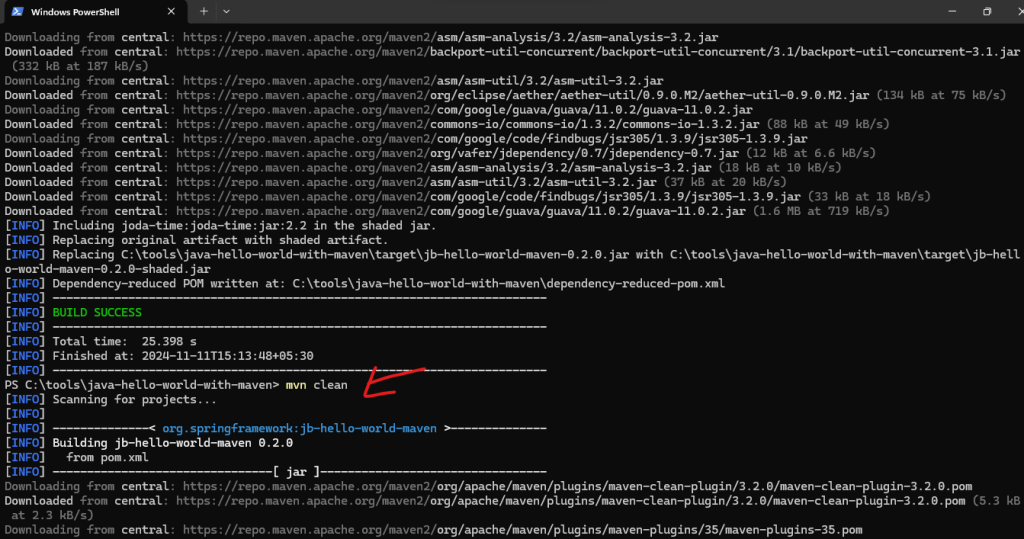
What is Maven
Maven is an open-source build automation tool primarily used for Java projects. It helps manage project builds, dependencies, documentation, and more by using a Project Object Model (POM). Maven simplifies the build process and ensures a standardized build environment.
Key Features of Maven
Project Object Model (POM): Maven uses an XML file known as pom.xml to describe the project structure, dependencies, and configuration details. This file acts as the central point of reference for all project-related information.
Dependency Management: Maven automatically manages project dependencies, downloading required libraries from central repositories. This eliminates the need for developers to manually handle JAR files.
Build Lifecycle: Maven defines a build lifecycle that includes several phases such as clean, compile, test, package, and install. Each phase represents a specific stage in the build process, allowing for streamlined execution of tasks.
Plugin Architecture: It supports a wide range of plugins that extend its functionality, enabling tasks like code analysis, packaging, and deployment. Popular plugins include those for static code analysis (e.g., Find Bugs) and web application packaging (e.g., Maven WAR).
Standardization: By adhering to a uniform structure and conventions, Maven allows developers to easily understand and navigate multiple projects without needing to learn different build systems for each one.
Reporting and Documentation: Maven can generate comprehensive reports on project status, including unit test results and dependency hierarchies, which aids in maintaining high-quality standards throughout the development process.
How to install Maven in Windows
Java must be installed in your Machine and configuration Environment Variables.
Step 1: Download Maven :
- Go to the official https://maven.apache.org/
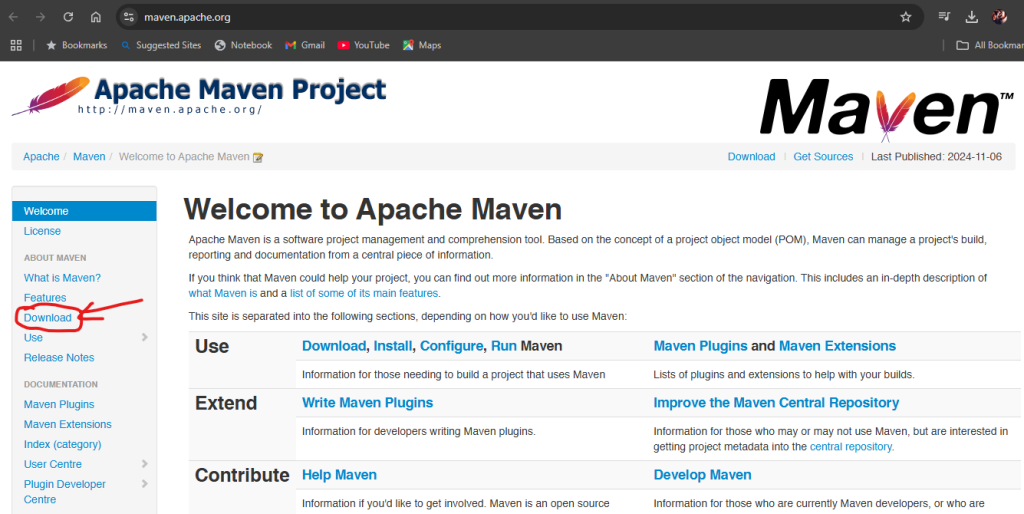
2. Download the binary zip archive for Windows.

Step 2: Extract Maven :
- Extract the downloaded zip file to a folder on your system.
Set Up Environment Variables:
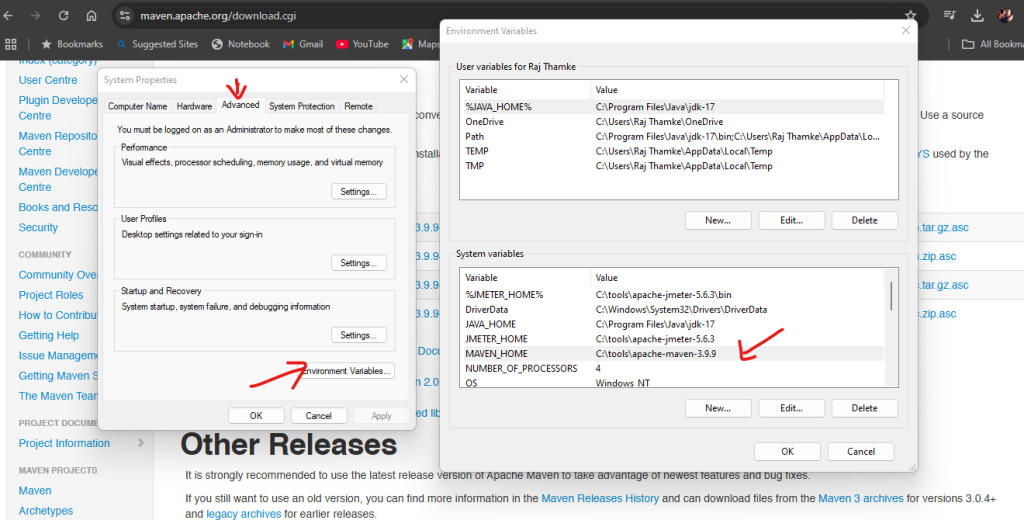
- JAVA_HOME: Ensure you have Java installed and set the
JAVA_HOMEenvironment variable to point to your JDK installation. - Open Control Panel > System and Security > System > Advanced system settings.
- Click on Environment Variables.
- Under System Variables, click on New and enter:

Add MAVEN_HOME :
- Open Control Panel > System and Security > System > Advanced system settings.
- Click on Environment Variables.
- Under System Variables, click on New and enter:
- Variable Name:
MAVEN_HOME - Variable Value: Path to your Maven folder
- Variable Name:
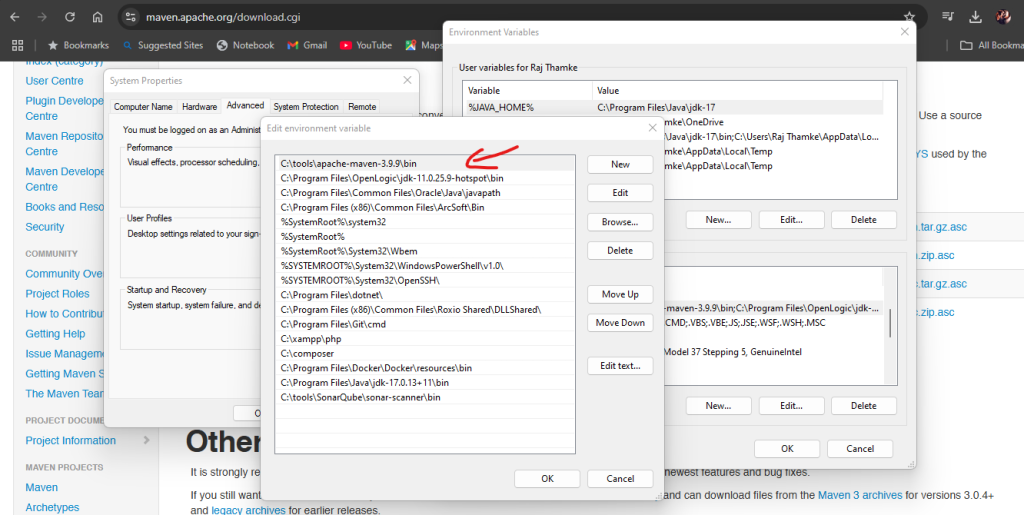
Update PATH :
- In the System Variables section, select the
Pathvariable and click Edit. - Add
%MAVEN_HOME%\binto thePathvariable and save.
Verify Maven Installation :
- Open a new Command Prompt.
- Type
mvn -versionand press Enter. - If installed correctly, Maven’s version information will display, indicating it can locate Java and Maven.

How to Run Maven :
- Open Command Prompt: Launch the Command Prompt on your Windows machine.
- Navigate to Project Directory: Use the
cdcommand to navigate to the directory containing your Maven project. - Run Maven Commands: Execute Maven commands like
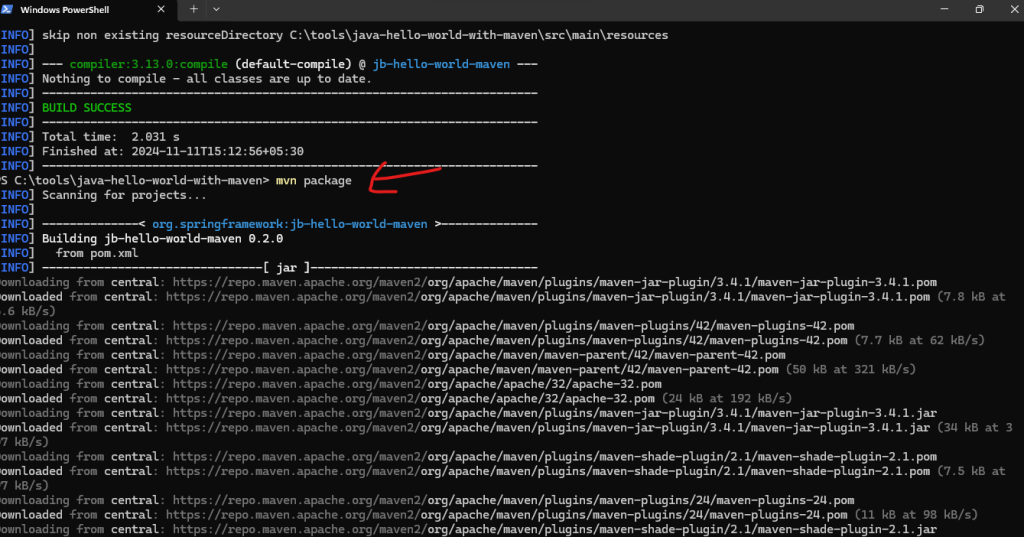
mvn clean,mvn compile,mvn test,mvn packageetc., depending on your project’s needs
- mvn test :


mvn compile :

mvn package :
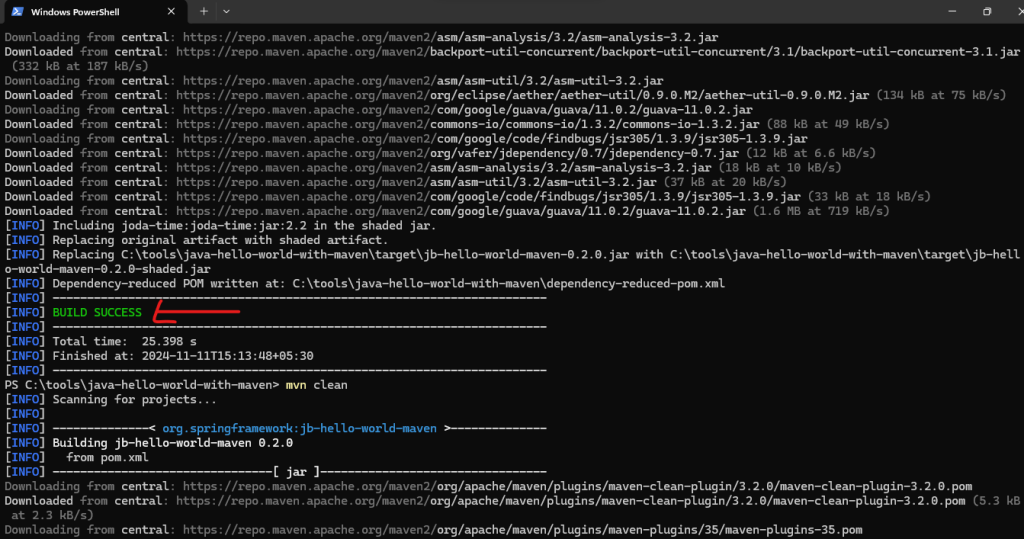
mvn clear :