Step 1: Update System Packages
Before installing XAMPP, ensure that your system packages are updated.
sudo apt update
sudo apt upgrade

    or
sudo apt update && sudo apt upgrade -y
Step 2: Download XAMPP 8.2.12 ( just new)
Visit the official XAMPP download page to download the installer for XAMPP 8.2.12.
wget https://sourceforge.net/projects/xampp/files/XAMPP%20Linux/8.2.12/xampp-linux-x64-8.2.12-0-installer.run
Step 3: Make the Installer Executable
chmod +x xampp-linux-x64-8.2.12-0-installer.run
Step 4: Run the Installer
Start the installation process by running the installer as a superuser:
sudo ./xampp-linux-x64-8.2.12-0-installer.run

Step 5: Launch XAMPP
Once installed, you can start XAMPP using the following command:
sudo /opt/lampp/lampp start

Step 6: Verify Installation
- Open a web browser.
- Go to: http://localhost.
- You should see the XAMPP welcome page, confirming that the installation was successful.
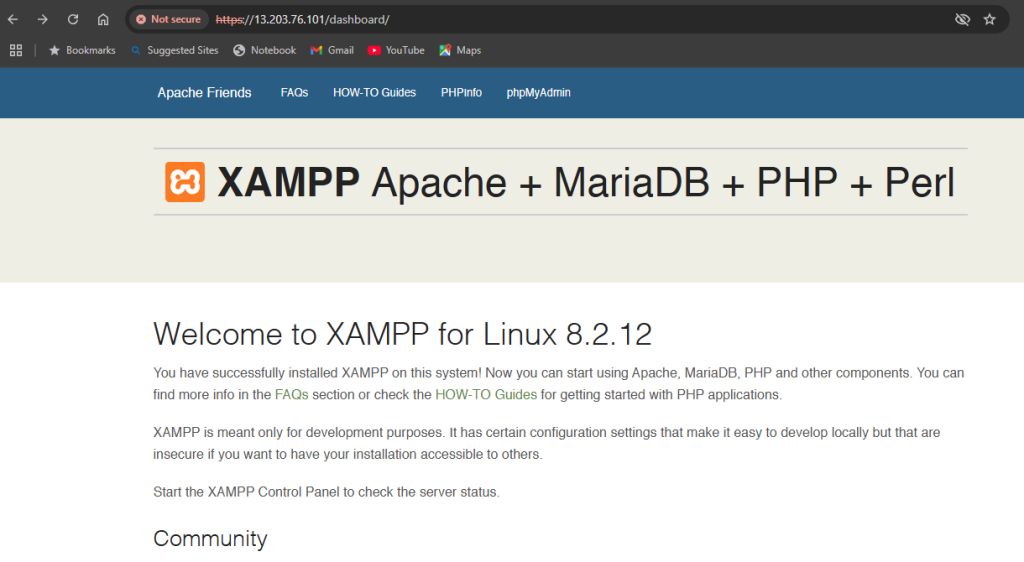
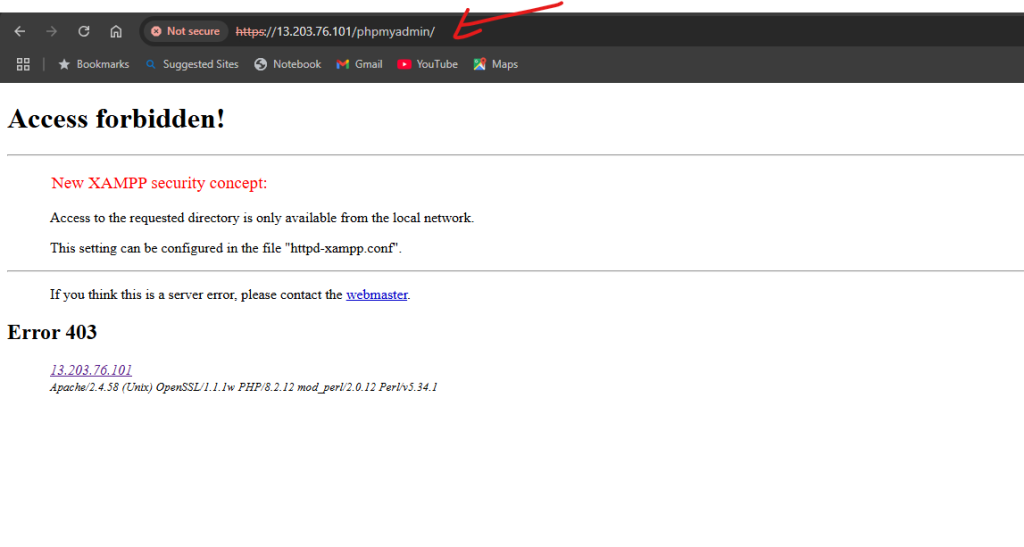
Let’s solve the phpmyadmin access forbidden problem now
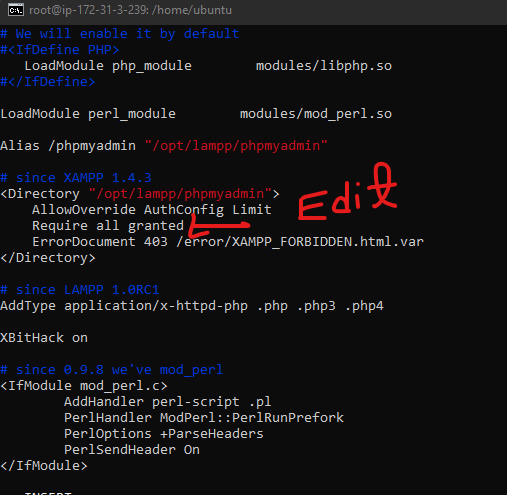
sudo vi /opt/lampp/etc/extra/httpd-xampp.confSolution:
Solution: “Require all granted” instead of “Require local”
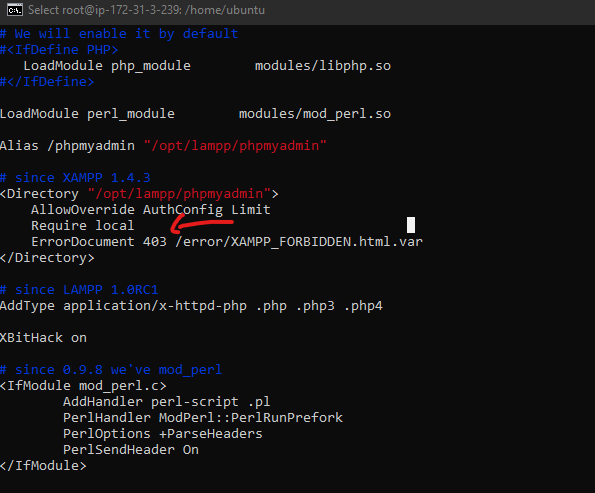
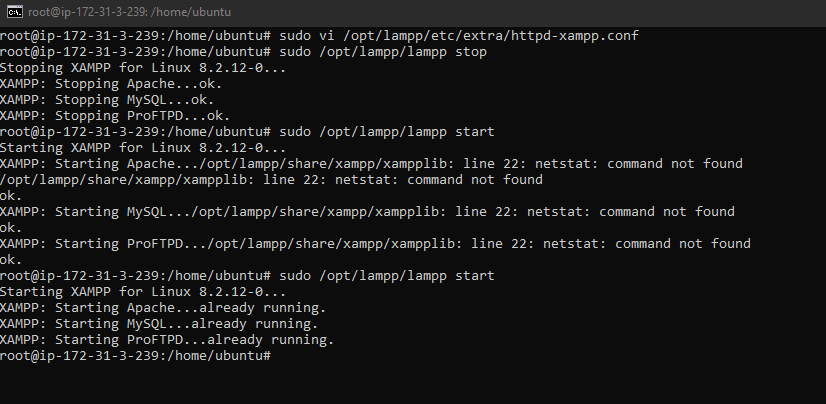
after this process you can stop and start XAMPP using the following command:
Step 7: Set Permissions (If Required)
Set permissions for the htdocs directory to allow editing files:
sudo chmod -R 777 /opt/lampp/htdocsIf you want to protect your database then please follow these step:
sudo /opt/lampp/xampp security