Git is a distributed version control system (DVCS) that helps developers track changes in their code, manage different versions, and collaborate efficiently in teams. It was originally developed by Linus Torvalds in 2005 (the creator of Linux) and has been maintained by Junio Hamano since then.

it’s mostly used for software development.
It is used for:
- Tracking code changes
- Tracking who made changes
- Coding collaboration
Key Features of Git
| Feature | Description |
|---|---|
| ✅ Distributed | Every developer has a full copy of the repository (local history). |
| 🔄 Branching & Merging | Easy and fast branching support for feature development and bug fixes. |
| 📂 Lightweight | Git repositories are fast and take up less space. |
| ⏳ History Tracking | Complete logs of every change (what, who, when). |
| 💡 Staging Area | Allows selecting which changes to include in a commit. |
| 🔐 Security | Ensures data integrity using SHA-1 hashing algorithm. |
Distributed Architecture: Every developer has a complete copy of the repository, including its full history, on their local machine. This allows work to continue even without an internet connection and provides redundancy against data loss.
Data Integrity: Git uses SHA-1 hashing to uniquely identify every change (commit), ensuring the integrity and traceability of project history.
Speed and Efficiency: Git is designed to be fast and efficient, handling large projects with ease. Its core is written in C, making operations like branching, merging, and committing extremely fast
Non-linear Development: Git supports thousands of parallel branches, enabling flexible workflows and experimentation without affecting the main codebase
Collaboration: Multiple developers can work on the same project simultaneously without conflicts.
Version History: Git tracks every change, allowing you to revert to previous versions if something goes wrong.
Branching and Merging: Developers can create separate branches to work on features or fixes, then merge them into the main codebase.
Open Source: Git is free and open-source, with a large community contributing to its development.
Distributed Workflow: Since every developer has a local copy of the repository, you can work offline and sync changes later.
Staging Area: Allows precise control over what gets included in commits
How Does Git Work?
Git operates by creating a repository (or “repo”) that stores all the files and their version history. Here’s a breakdown of how Git works:
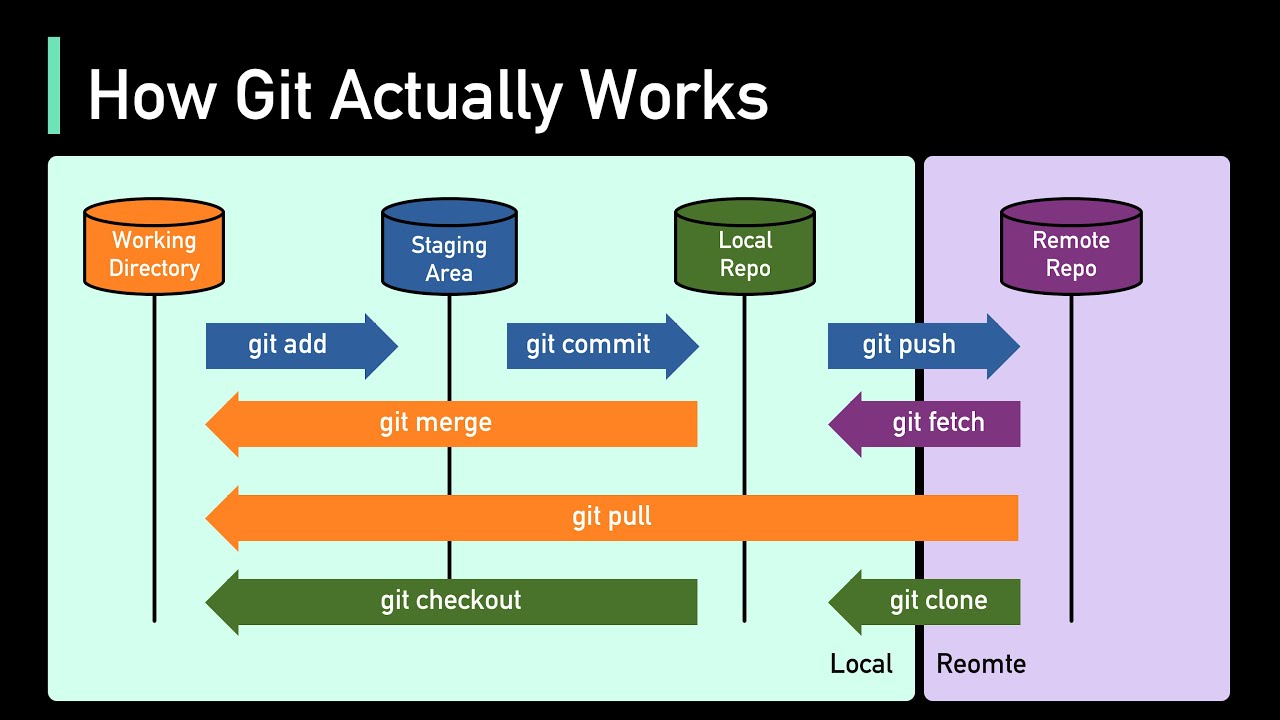
1. Repositories
A Git repository is a folder that contains all project files and their history. There are two types:
- Local Repository: Stored on your computer.
- Remote Repository: Hosted on a server (e.g., GitHub, GitLab, Bitbucket) for collaboration.
2. Commits
A commit is a snapshot of your project at a specific point in time. Each commit has a unique ID (hash) and includes:
- Changes made to files.
- A commit message describing the changes.
- Metadata like the author and timestamp.
3. Branches
Branches allow you to work on different versions of a project simultaneously. The default branch is often called main or master. You can create a branch to develop a new feature, fix a bug, or experiment without affecting the main codebase.
4. Merging
Merging combines changes from one branch into another. For example, after completing a feature on a separate branch, you can merge it into the main branch.
5. Staging Area
Before committing changes, you add them to the staging area using git add. This allows you to choose which changes to include in the next commit.
6. Remote Repositories
You can push your local changes to a remote repository or pull changes from it to keep your local copy in sync.
Git Workflow
Basic Commands:
git init– Create new repositorygit clone<url> – Copy existing repositorygit add<file> – Stage changesgit commit-m “message” – Save changes to local repositorygit push– Send changes to remote repositorygit pull– Fetch and merge changes from remotegit branch– Manage branchesgit merge<branch> – Combine branchesgit checkout/git switch<branch> – Navigate branchesgit status– View current stategit log– View commit history
Popular Platforms That Use Git
- GitHub (Microsoft-owned)
- GitLab (Open-core model)
- Bitbucket (Atlassian-owned)
- Azure DevOps (Microsoft)
- SourceForge (Older alternative)
Here’s a clear and detailed explanation of the Common Git Hosting Services with their characteristics:
1. GitHub (Owned by Microsoft)
Overview:
- World’s most popular Git hosting platform.
- Ideal for open-source and private projects.
- Strong community and integration with tools like Actions, Codespaces, and Discussions.
Key Features:
- Pull Requests & Code Review
- GitHub Actions (CI/CD)
- Project Management Tools
- Vast open-source project hosting
Used by: React, VS Code, TensorFlow, Bootstrap, etc.
2. GitLab (Open-core Model)
Overview:
- Offers both cloud and self-hosted versions.
- Open-core: free core, paid enterprise features.
Key Features:
- Built-in CI/CD
- Issue tracking & DevOps integration
- Self-hosting for more control
- Strong focus on DevSecOps (Dev + Security + Ops)
Used by: NASA, CERN, Alibaba, etc.
3. Bitbucket (Owned by Atlassian)
Overview:
- Designed for teams using Jira, Confluence, etc.
- Popular among enterprise and Agile teams.
Key Features:
- Deep integration with Jira
- Supports Git and Mercurial (earlier)
- Built-in Pipelines for CI/CD
- Self-hosted option via Bitbucket Server
Used by: Teams working in Atlassian environments
4. Azure DevOps Repos (Microsoft)
Overview:
- Part of the larger Azure DevOps suite
- Used mostly in enterprise environments
Key Features:
- Git repository hosting
- Integrated with Azure Boards, Pipelines, and Artifacts
- Strong support for .NET & Azure Cloud workflows
Ideal for: Microsoft stack and enterprise CI/CD
5. Source Forge (Legacy Platform)
Overview:
- One of the earliest Git/SVN hosting platforms
- Once popular for open-source projects
Key Features:
- Simple code hosting and downloads
- Project wikis, forums, bug tracking
- Less active than GitHub/GitLab but still used for legacy projects
Example: GIMP (was hosted here earlier)
Benefits of Using Git
- Easily back up and restore your code.
- Smooth team collaboration.
- Every change is tracked and versioned.
- Switch to any previous version of the code anytime.
- Multiple developers can work without conflicts.
- Free and open-source.
- CI/CD Integration: Automate testing and deployment workflows with Git-based pipelines
Here’s a detailed explanation of the Benefits of Using Git, breaking down each point for clarity and real-world relevance:
1. Easily Back Up and Restore Your Code
What it means:
With Git, your code and its entire history are stored locally and can be pushed to remote servers like GitHub or GitLab.
Why it matters:
- No fear of losing work
- You can always restore previous versions or recover from accidental deletions
📌 Example: If your computer crashes, you can just clone the repository from GitHub and continue working.
2. Smooth Team Collaboration
What it means:
Multiple developers can work on the same project at the same time, each in their own branch.
Why it matters:
- Changes can be merged without overwriting others’ work
- Encourages parallel development
📌 Example: One developer can fix a bug while another adds a new feature — no waiting required.
3. Every Change Is Tracked and Versioned
What it means:
Git keeps a full history of every change made in the codebase, including who made it and why.
Why it matters:
- Makes it easy to audit changes
- You can trace bugs or understand the reasoning behind code
📌 Example: Using git log to see who changed a function last and when.
4. Switch to Any Previous Version Anytime
What it means:
You can checkout any past commit or branch to restore a previous state of the codebase.
Why it matters:
- Revert to a known-good version
- Useful during debugging or undoing mistakes
📌 Command:
git checkout <commit-id>5. Multiple Developers Can Work Without Conflicts
What it means:
Using branching, each developer can work independently and merge changes later.
Why it matters:
- Reduces code conflicts
- Enables isolated testing and experimentation
📌 Tip: Use git rebase or git merge to combine code from different branches.
6. Free and Open Source
What it means:
Git is 100% free to use, and its source code is open and community-driven.
Why it matters:
- No licensing cost
- Transparent and customizable
- Massive community support
7. CI/CD Integration
What it means:
Git integrates seamlessly with Continuous Integration and Continuous Deployment pipelines.
Why it matters:
- Automate testing, building, and deploying
- Improves code quality and speeds up delivery
📌 Example:
Using GitHub Actions, GitLab CI, or Bitbucket Pipelines to test your app on every push.
Advanced Git Features
- Rebasing: Alternative to merging that creates linear history
- Stashing: Temporarily shelves changes
- Tagging: Mark specific points in history (like releases)
- Hooks: Scripts that run at specific Git events
- Submodules: Include other repositories within your project
- Bisect: Binary search through commits to find bugs
Here is the same content translated into English, with detailed explanations of each advanced Git feature — what it is, when to use it, and how to use it:
1. Rebasing
What it is:
Rebase is a way to create a linear history in Git. It’s an alternative to merge, but it doesn’t create extra merge commits.
When to use:
When you want your commit history to be clean and linear.
How to use:
git checkout feature-branch
git rebase main
Benefits:
- Clean commit history
- Easier to read Pull Requests
- Conflicts resolved one commit at a time
2. Stashing
What it is:
Stashing temporarily saves your changes so that you can clean your working directory without losing any progress.
When to use:
When you need to switch branches but don’t want to commit or lose your current changes.
How to use:
git stash           # Save the changes
git stash list      # View saved stashes
git stash apply     # Apply the latest stash
3. Tagging
What it is:
Tagging is used to mark specific commits (usually for releases like v1.0, release-2024).
When to use:
When you want to permanently label a version or a release in history.
How to use:
git tag v1.0             # Create a tag
git push origin v1.0     # Push the tag to remote
4. Hooks
What it is:
Git Hooks are scripts that run automatically when certain Git events occur, like committing or pushing.
When to use:
- To run tests or checks before commits
- To validate commit messages
- To enforce formatting rules
How to set up:
Hooks live in the .git/hooks/ directory.
Example: Set up a pre-commit hook
cd .git/hooks
cp pre-commit.sample pre-commit
# Write a shell script in the file and make it executable:
chmod +x pre-commit
5. Submodules
What it is:
Git Submodules allow you to include another Git repository inside your project.
When to use:
When your project depends on external Git repositories (like a shared library or component).
How to use:
git submodule add https://github.com/user/repo.git path/to/submodule
git submodule update --init
6. Bisect
What it is:
Git Bisect helps you find which commit introduced a bug using binary search.
When to use:
When you don’t know exactly when a bug was introduced and want to locate it efficiently.
How to use:
git bisect start
git bisect bad            # Current commit is buggy
git bisect good abc123    # This older commit is known to be good

# Git will now help you test intermediate commits
# Once done:
git bisect reset
Why Git is Important for Developers
- Collaboration: Enables team development without overwriting work
- History: Full change tracking with ability to revert
- Experimentation: Safe environment to try new ideas via branches
- Backup: Distributed nature provides redundancy
- Open Source: Powers GitHub/GitLab, enabling modern open-source development
Here’s a detailed explanation of why Git is important for developers, covering each point clearly:
1. Collaboration
What it means:
Git allows multiple developers to work on the same project simultaneously without overwriting each other’s code.
Why it matters:
- Each developer can work on their own branch.
- Git merges everyone’s changes smoothly.
- Code conflicts can be identified and resolved systematically.
Example: Two developers can work on different features in parallel, then merge their work into the main branch.
2. History (Change Tracking)
What it means:
Git tracks every change made to the code — who made it, when, and why.
Why it matters:
- You can view past changes, check logs, or blame specific lines.
- If something breaks, you can revert to a previous version.
Example: Accidentally deleted a file? Git can recover it with git checkout or git revert.
3. Experimentation via Branching
What it means:
Git lets you create branches to try out new ideas or features without affecting the main codebase.
Why it matters:
- Test new features safely.
- Discard changes easily if they don’t work.
- Merge successful changes back into the main project.
Example: Want to try a UI redesign? Create a new branch, experiment, and only merge if satisfied.
4. Backup (Distributed System)
What it means:
Each developer has a full copy of the repository, not just the latest version.
Why it matters:
- Even if the server crashes, every developer still has the full project.
- You’re never dependent on one central machine.
Example: Working offline? You can still commit, view history, and push later when online.
5. Open Source Support (GitHub/GitLab)
What it means:
Git is the core technology behind platforms like GitHub, GitLab, and Bitbucket — the backbone of open-source development.
Why it matters:
- Easy collaboration across the globe.
- Community contributions via Pull Requests.
- Supports CI/CD, issue tracking, and more.
Example: Most open-source projects (like Linux, React, TensorFlow) are developed using Git + GitHub.
Best Practices for Git
- Write meaningful commit messages
- Make small, focused commits
- Use branches for features/bugfixes
- Regularly pull from shared branches
- Don’t commit generated files
- Use .gitignore appropriately
- Review changes before staging/committing
Here’s a detailed explanation of the Best Practices for Using Git, along with why each one matters and how to apply it effectively:
1. Write Meaningful Commit Messages
What to do:
Use clear, concise messages that describe what and why, not just how.
Why it matters:
Helps others (and your future self) understand changes easily.
✅ Example:
✅ Fix login issue with expired session token
❌ update or fix stuff
2. Make Small, Focused Commits
What to do:
Commit one logical change at a time — not too many unrelated changes in one commit.
Why it matters:
- Easier to review, revert, or debug
- Cleaner history
✅ Example:
- Commit 1: “Add validation to login form”
- Commit 2: “Fix typo in error message”
3. Use Branches for Features or Bug Fixes
What to do:
Create separate branches for new features or bug fixes instead of working directly on main or master.
Why it matters:
- Safer experimentation
- Easier collaboration and code review
- Organized workflow
✅ Example:
git checkout -b feature/user-profile
4. Regularly Pull from Shared Branches
What to do:
Keep your branch up to date with the main or team branch using git pull or git fetch + git rebase.
Why it matters:
- Reduces merge conflicts
- Ensures compatibility with teammates’ work
5. Don’t Commit Generated Files
What to do:
Avoid committing files that are built/generated (e.g., node_modules, .class, dist/, etc.).
Why it matters:
- Keeps repo clean and lightweight
- Prevents unnecessary diffs or merge issues
✅ Tip: Use .gitignore to exclude such files
6. Use .gitignore Appropriately
What to do:
Define in .gitignore which files/folders should be excluded from version control.
Why it matters:
- Keeps sensitive or unnecessary files out of the repo
- Prevents accidental commits of build artifacts, credentials, IDE configs
✅ Example for Node.js:
node_modules/
.env
dist/
7. Review Changes Before Staging/Committing
What to do:
Always check what you’re about to commit using git status and git diff.
Why it matters:
- Prevents accidental commits
- Ensures only intended changes are included
✅ Useful commands:
git status
git diff         # View changes
git add -p       # Stage changes interactively
Git in the Development Ecosystem
Git integrates with:
- CI/CD pipelines
- Code review tools
- Project management systems
- IDEs and text editors
- Deployment systems
Here’s a detailed explanation of Git’s role in the development ecosystem, highlighting how it integrates with key tools and workflows to streamline modern software development:
1. CI/CD Pipelines (Continuous Integration / Continuous Deployment)
How Git integrates:
Every time you push code, Git can trigger automated pipelines to build, test, and deploy your application.
Tools it connects with:
- GitHub Actions
- GitLab CI/CD
- Jenkins
- CircleCI
- Travis CI
- Azure Pipelines
Example: Push to main branch triggers automated tests and deploys to staging.
2. Code Review Tools
How Git integrates:
Pull Requests (GitHub) or Merge Requests (GitLab/Bitbucket) allow teams to review code, comment, and approve changes before merging into main branches.
Benefits:
- Catch bugs early
- Enforce code quality and style
- Promote team collaboration
Popular platforms:
- GitHub
- GitLab
- Bitbucket
Workflow: Create a feature branch → Push code → Open Pull Request → Review → Merge
3. Project Management Systems
How Git integrates:
You can link commits and branches to tasks, issues, or user stories in project tools.
Popular tools that integrate:
- Jira (with Git/Bitbucket/GitHub)
- Trello (via GitHub)
- Asana
- Azure Boards
- Notion (via automation tools)
Example: Commit message like Fixes #123 automatically closes an issue in GitHub or Jira.
4. IDEs and Text Editors
How Git integrates:
Most modern editors have built-in Git support for committing, branching, resolving conflicts, etc.
Popular Git-enabled editors:
- VS Code
- IntelliJ IDEA / WebStorm
- Eclipse
- Atom
- Sublime Text
Example: Use the Git sidebar in VS Code to stage files, commit, and push without leaving the editor.
5. Deployment Systems
How Git integrates:
Git can trigger deployments automatically through hooks or CI/CD on every push or tag.
Examples of integration:
- Heroku: Deploys on push to linked Git branch
- Vercel/Netlify: Auto-deploys from GitHub repos
- Docker + Git: Build and deploy containers
- Kubernetes: Trigger deployments via GitOps (e.g., ArgoCD, Flux)
Example: Tagging a release in Git pushes code to production via CI/CD.
Summary Table:
| Integration Area | Purpose | Common Tools |
|---|---|---|
| CI/CD Pipelines | Build, test, and deploy code | GitHub Actions, GitLab CI |
| Code Review | Collaborate on and approve code | GitHub PRs, GitLab MRs |
| Project Management | Link tasks to code and progress | Jira, Trello, Asana |
| IDE/Text Editor | Work with Git inside your editor | VS Code, IntelliJ, Eclipse |
| Deployment Systems | Automatically deploy code | Heroku, Netlify, Vercel |